Overview
This guide will walk you through your first-time login process on your work computer. You'll set up multi-factor authentication (MFA) using Microsoft Authenticator and configure Windows Hello for added security.
Prerequisites
- Your work computer
- Your internal email address
- Your temporary password (provided by IT)
- A mobile phone (for Microsoft Authenticator)
Initial Login Steps
1. First Login
- Turn on your computer
- At the Windows login screen, enter your internal email address (e.g., firstname.lastname@trinova.medical)
- Enter your temporary password
- Click 'Sign in'
2. Change Your Password
You'll be immediately prompted to change your password:
- Enter your current (temporary) password
- Create and enter a new password that meets these requirements:
- At least 12 characters long
- Include uppercase and lowercase letters
- Include at least one number
- Include at least one special character
- Confirm your new password by entering it again
- Click 'Submit'
3. Set Up Microsoft Authenticator
After changing your password, you'll be prompted to set up MFA:
- On your mobile phone, download 'Microsoft Authenticator' from your app store
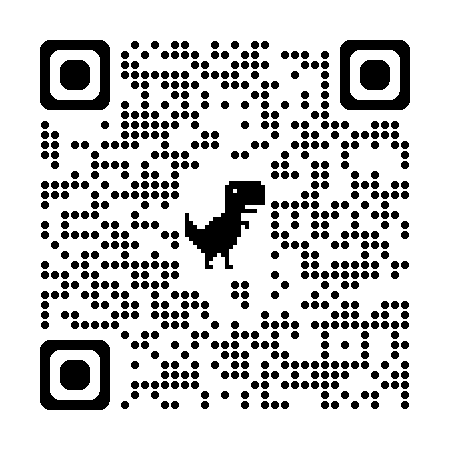 Google Play Store
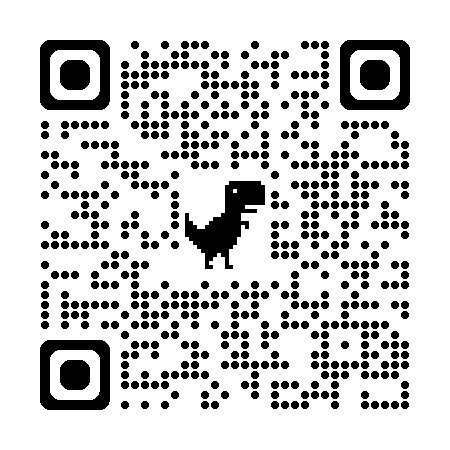 Apple App Store
- Open the Microsoft Authenticator app
- Tap '+ Add account'
- Select 'Work or school account'
- On your computer, click 'Next' to display the QR code
- Use your phone to scan the QR code shown on your computer screen
- Once scanned, you'll receive a test notification on your phone
- Approve the notification by tapping 'Approve' on your phone
- Click 'Next' on your computer to complete MFA setup
4. Set Up Windows Hello PIN
Finally, you'll set up Windows Hello:
- When prompted for Windows Hello setup, click 'Set up PIN'
- Create a PIN that:
- Is at least 6 numbers long
- Is easy for you to remember
- Is different from your password
- Enter your PIN again to confirm
- Click 'OK'
Next Steps
After completing these steps, you'll be taken to your desktop. From here, you can:
- Access your email through Outlook
- Log into eClinicalWorks
- Customize your desktop settings
Important Notes
- Save your new password in a secure location
- Do not share your password or PIN with anyone
- Always lock your computer when you are not around it
- Always fully sign out of your profile if you log into a machine that you do not regularly use
- Keep your Microsoft Authenticator app installed on your phone
- Contact Data Revolution at (850) 972-9972, option 1 if you run into any issues